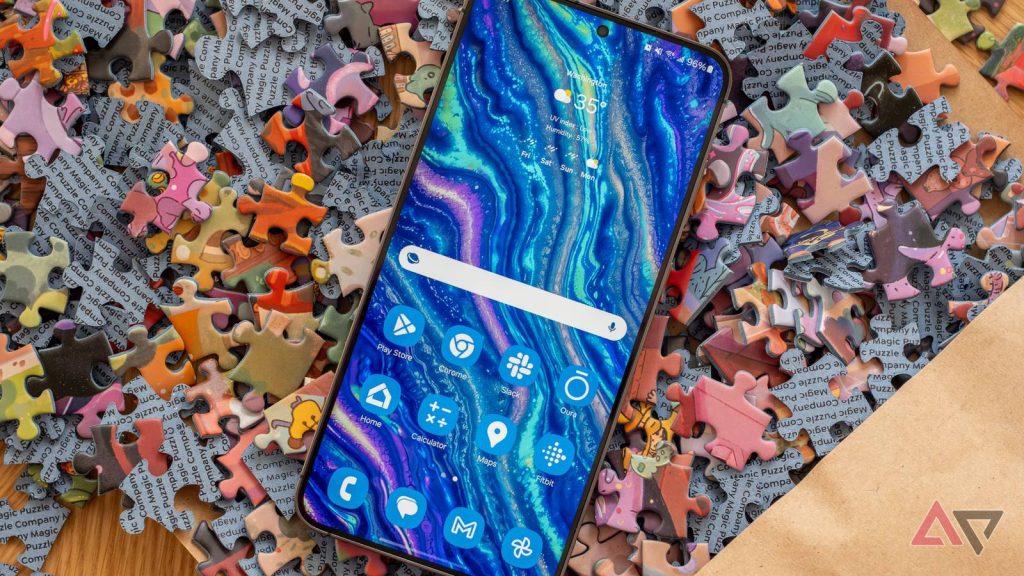

A minimalist home screen isn’t easy to achieve, especially for people like me who rely on dozens of apps every day.
I tried it multiple times, but didn’t quite get the outcome I wanted.
At one point, I stopped trying because I had to break the deeply ingrained smartphone habit each time I did something new to get a minimalist home screen on my Android phone.
However, I didn’t have to suffer from this for long, as I tried a Samsung Galaxy phone running Android for the first time in 2021.
My Galaxy S21 instantly solved the problem I had given up on solving.
The Samsung Galaxy handset helped me achieve a minimalist home screen, and my favorite part of the process was that I put in very low effort to get it done.
I replaced every app on my Samsung home screen with one small trick in the One UI Home launcher. Here is how I did it.
How I used the One UI Home launcher to replace every app on my home screen

One UI packs plenty of handy features that are worth enabling on every new Samsung phone.
I don’t quite remember if the Edge panels feature was enabled by default when I first bought my S21. I recommend turning it on if it isn’t part of the default setup, especially for those who want a minimalist home screen.
With the Edge panels feature enabled on my Galaxy phone, I can add as many as 22 apps to the dock-style panel.
Before using Edge panels, I pinned as many as 16 apps to my home screen, so it provided me with ample space to move all my apps.
However, I wish Samsung made it easier to take those apps from the home screen to the Edge panels.
It took some time because I couldn’t simply drag those apps from the home screen and drop them into the side panel.
Instead, I had to add those apps to the panel first, and then remove their duplicates on the home screen.
To add an app, tap the pencil icon at the bottom after opening the panel, and then drag one of your choices to the panel.
You can also quickly remove the existing apps from it by tapping the “—” option in the upper-left corner of the app icons.
The panel doesn’t always remain visible on the screen, so you get a clear home screen with no app widget sitting on it. By default, the handle remains visible on the right edge of your display.
I swipe the handle to the left to open the panel, which, in turn, reveals all 16 apps I pinned.
In my Edge panels setup, the apps I use frequently are available as individual icons, while for all other apps, I group them into folders.
Creating app folders in the Edge panels isn’t any different from how you do it on your home screen. All you do is drag one app icon onto another in the panel, and then name the folder.
How to quickly enable Edge panels in One UI

If you don’t see the handle on the left or right edge of your display, the Edge panels feature is turned off on your phone.
To turn it on quickly, follow the steps below:
- Open Settings.
- Type Edge panels in the search bar.
- Enable the Edge panels toggle directly from the search results.
After enabling it, you can go to the Edge panels setting and customize its appearance. For example, I don’t like accidentally changing the position of the handle, so I keep its position locked.
Since I’m right-handed, I also keep it on the right, making it easier for my right thumb to reach the handle.
Since I use dark mode, I want the handle to be white and clearly visible, so I chose the white option and set the transparency to Low while selecting its style.
You can also customize its size and width. Not only that, but it also allows you to use the panel for an entirely different purpose than hosting apps.
For example, you can pin your favorite contacts, tasks, weather, reminders, and more.
The biggest downside of this feature is that you can’t use the same panel to host both apps and your favorite contacts or any other tools.
I don’t have any plans to quit Edge panels anytime soon
Everything in life gets boring eventually, and I’m certain that I’ll once again want a little bit of chaos on my home screen.
Before that happens, the empty home screen needs to appear boring to me.
It’s only been a few months since I started using Edge panels to access apps on my phone, so it’ll take some time before I want to reverse my action. Until then, I want to enjoy my unapologetically simple home screen.
PakarPBN
A Private Blog Network (PBN) is a collection of websites that are controlled by a single individual or organization and used primarily to build backlinks to a “money site” in order to influence its ranking in search engines such as Google. The core idea behind a PBN is based on the importance of backlinks in Google’s ranking algorithm. Since Google views backlinks as signals of authority and trust, some website owners attempt to artificially create these signals through a controlled network of sites.
In a typical PBN setup, the owner acquires expired or aged domains that already have existing authority, backlinks, and history. These domains are rebuilt with new content and hosted separately, often using different IP addresses, hosting providers, themes, and ownership details to make them appear unrelated. Within the content published on these sites, links are strategically placed that point to the main website the owner wants to rank higher. By doing this, the owner attempts to pass link equity (also known as “link juice”) from the PBN sites to the target website.
The purpose of a PBN is to give the impression that the target website is naturally earning links from multiple independent sources. If done effectively, this can temporarily improve keyword rankings, increase organic visibility, and drive more traffic from search results.